
Description
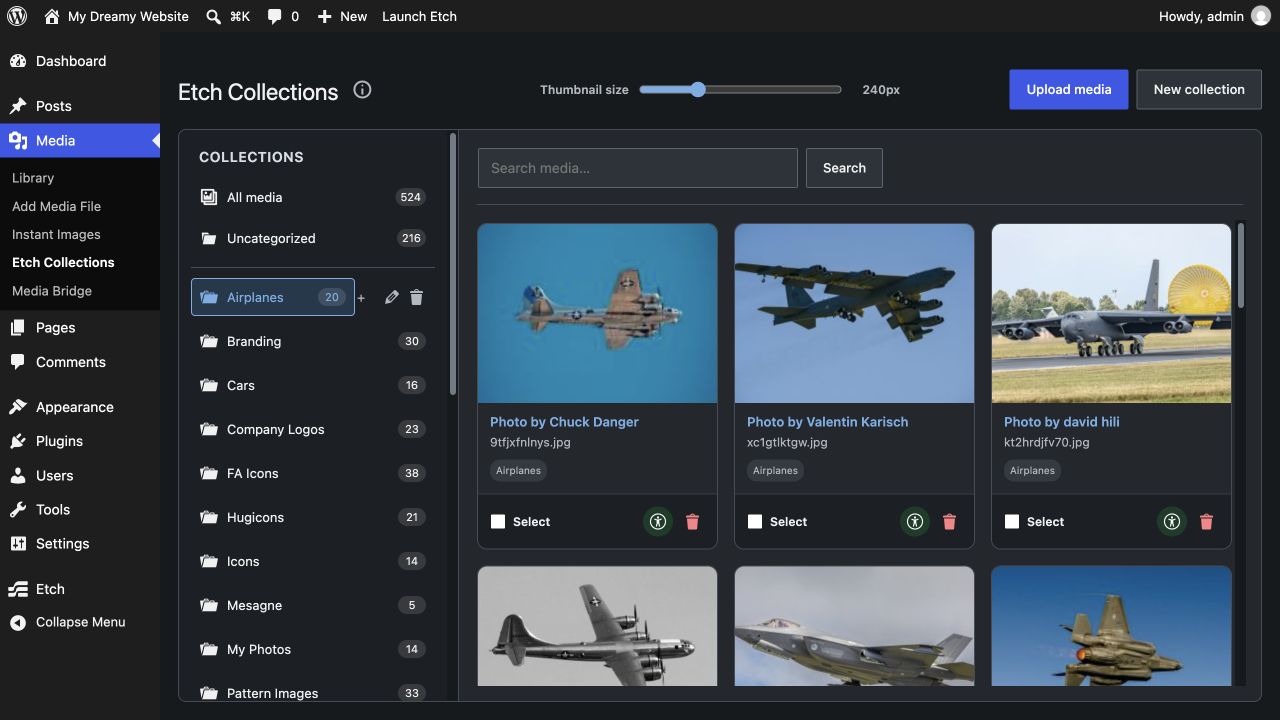
Media Bridge for Etch adds a native Media > Etch Collections workspace for organizing the WordPress media library with Etch itself. Create and edit two-level collections, upload or select media, assign items to multiple collections, drag selected items into a collection, and use bulk assignment tools without installing another folder plugin.
Wicked Folders and HappyFiles remain supported as optional bridge providers. Choose one under Media > Media Bridge when you want bidirectional synchronization instead of the native-only mode.
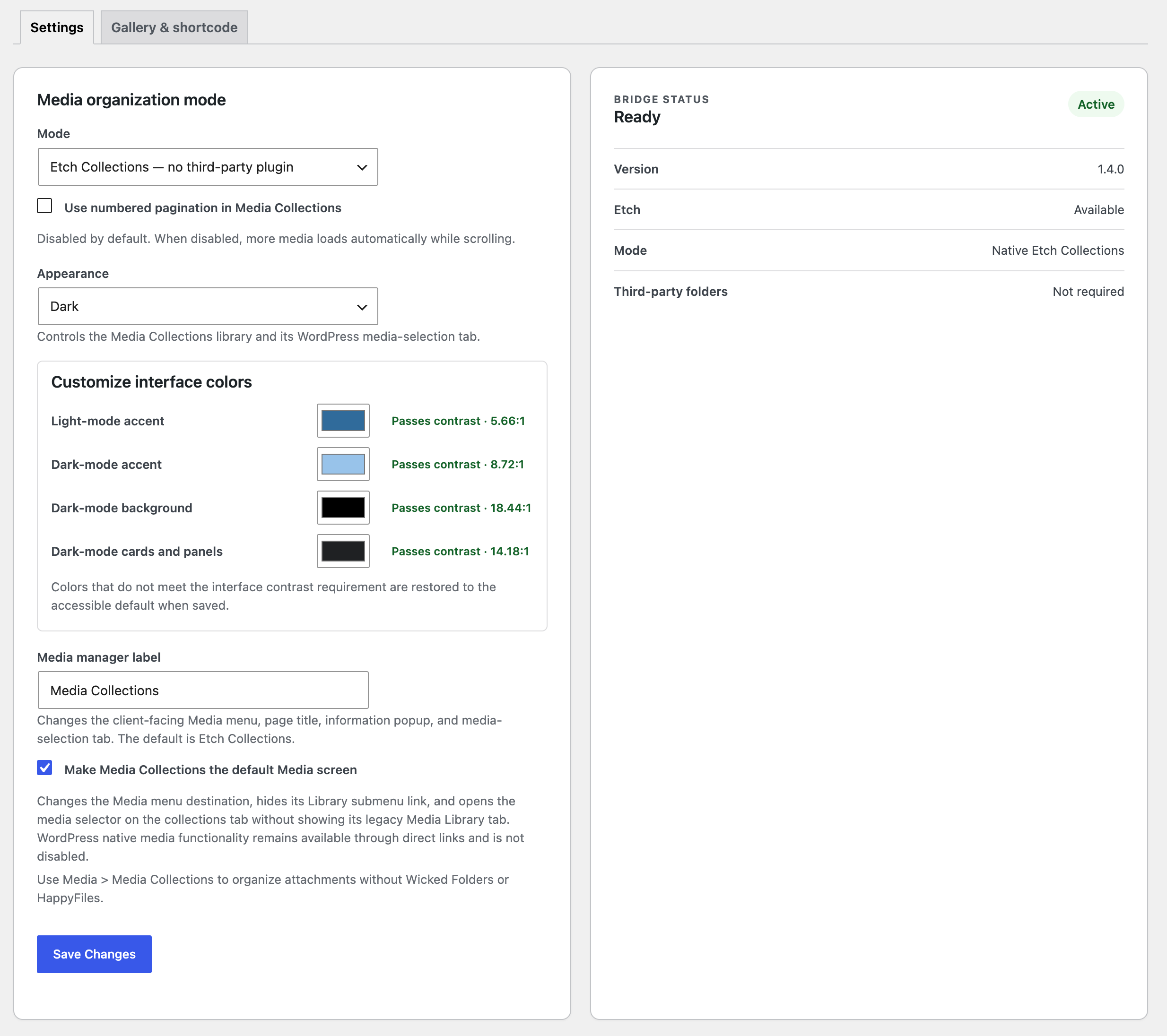
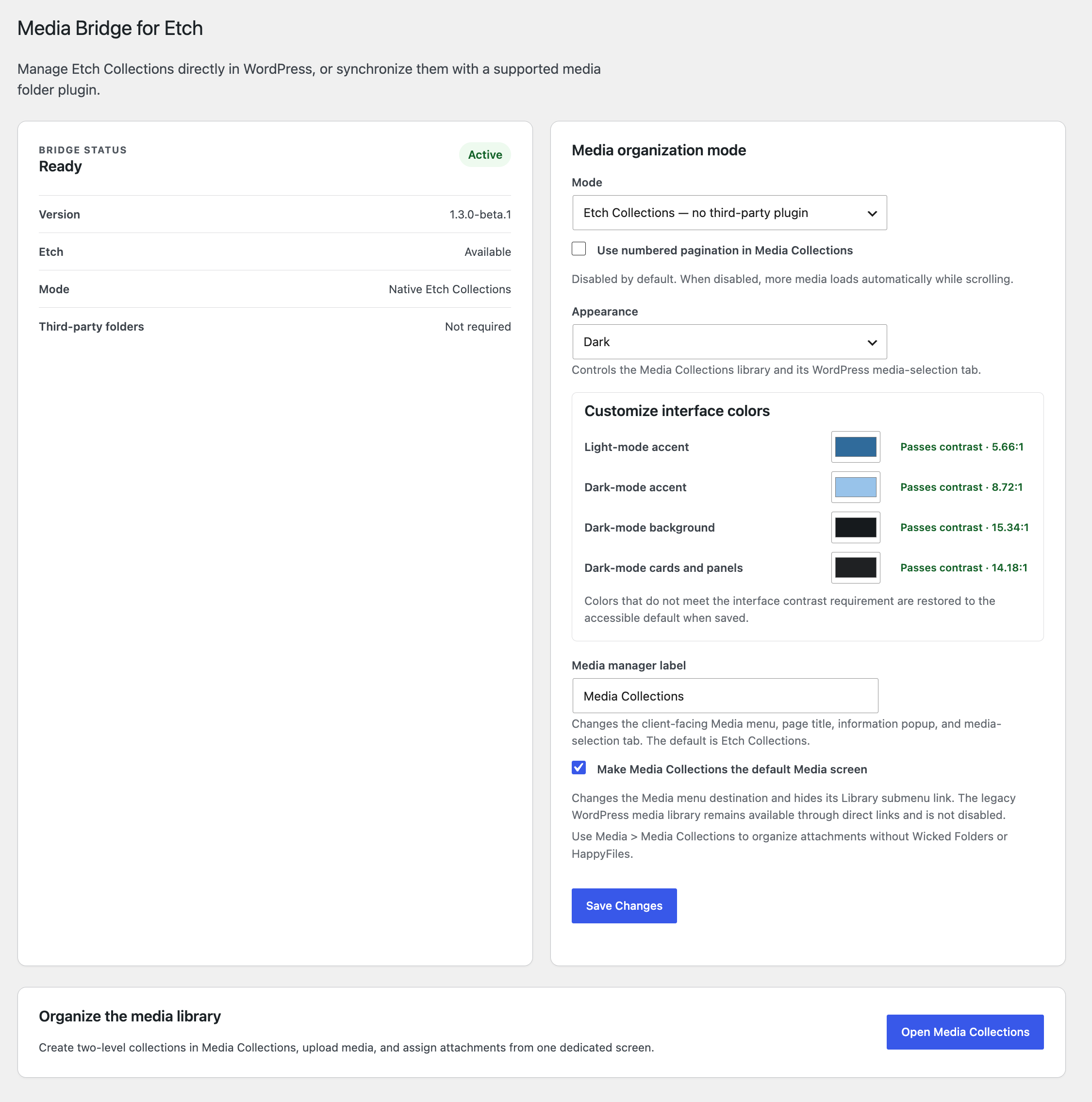
To update the plugin settings, open Media > Media Bridge in the WordPress admin. The settings are located under the Media tab, not the Settings menu.
WordPress 7.0 and newer also exposes the manager and Media Bridge settings through the Command Palette. The manager entry uses the administrator-defined label and is available only in native Etch Collections mode; it is hidden from both the Media menu and Command Palette while Wicked Folders or HappyFiles is selected. WordPress capability checks determine which entries each user can see.
Administrators can white-label the native manager under Media > Media Bridge by changing the Media manager label. The default remains Etch Collections for existing sites. The custom name is used in the Media menu, manager title, information popup, WordPress media-selection tab, and Command Palette. Searching the Command Palette for Etch continues to find both the manager and Media Bridge settings, even when the manager uses a custom name.
An additional option can make the native manager the default Media screen. It is disabled by default and applies only in Etch-only mode. When enabled, the Media menu opens the custom-labeled manager and the legacy Library submenu link is hidden. WordPress’s legacy media library is not disabled: direct links from WordPress, plugins, bookmarks, and attachment workflows continue to work normally.
Optional providers:
- Wicked Folders
- HappyFiles
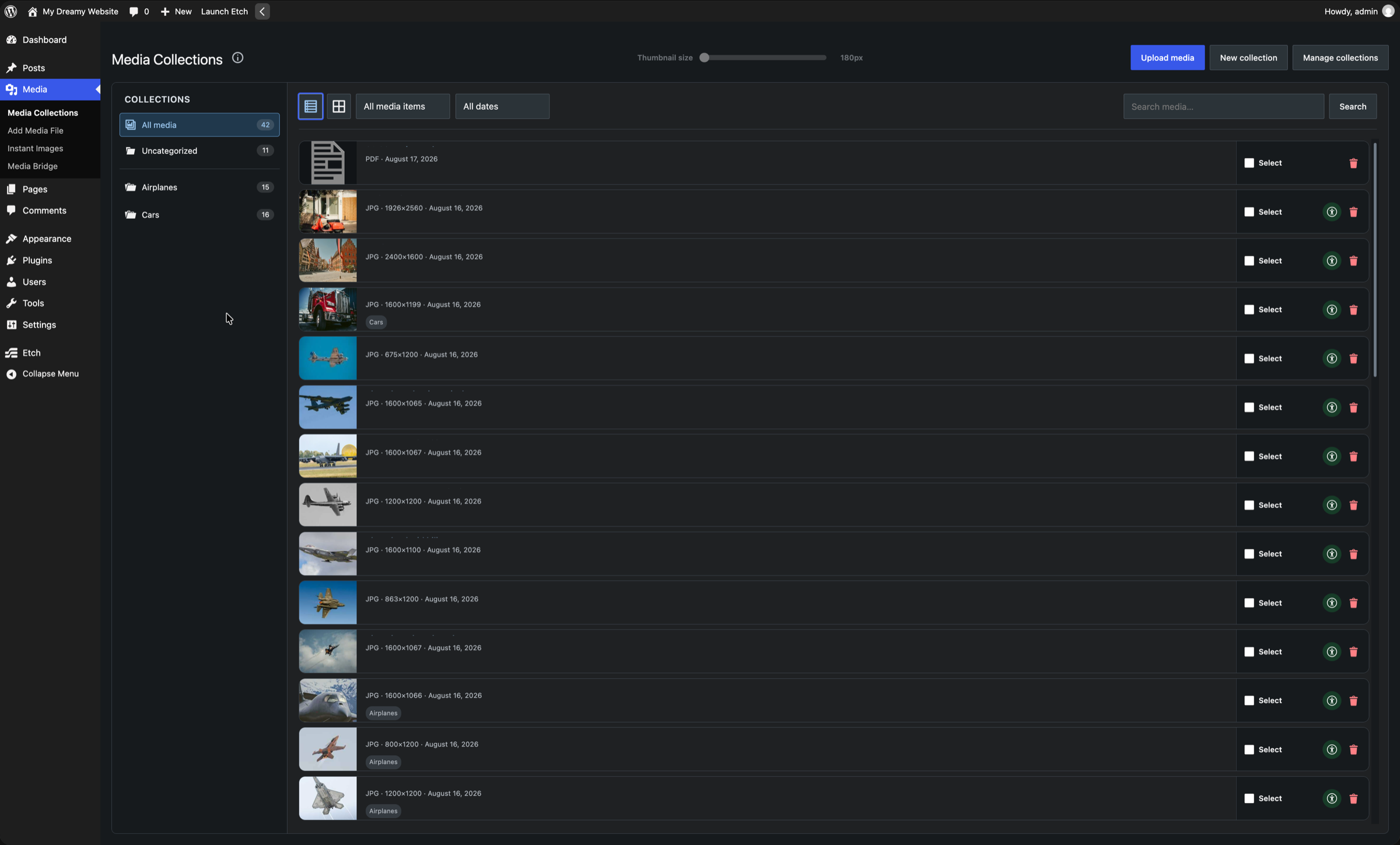
Native features include collection creation, rename, movement and deletion; alphabetical ordering in Etch; media uploads and permanent deletion from either the library or attachment modal; uniform edge-to-edge image previews; an adjustable 180–400 pixel card grid with a 240-pixel default; Auto, Light, and Dark appearance modes; search; automatic scroll loading; optional numbered pagination; multi-collection assignments; Ctrl/Command-click and Shift-click range selection; drag-and-drop assignment; and bulk add, remove, uncategorize, or delete actions.
Etch Collections loads additional media automatically as you scroll. Administrators who prefer page controls can enable numbered pagination under Media > Media Bridge.
Bridge features include folder creation, rename and movement synchronization; attachment assignment synchronization; provider-specific ordering; optional deletion synchronization; fixed or most-recent conflict authority; reconciliation; and a 200-entry sync history.
Etch supports two folder levels. Deeper folders in the selected client-side provider remain untouched. Media assigned below level two is represented in Etch by its nearest supported ancestor.
Migrating from Wicked Folders or HappyFiles
Media Bridge stores synchronized copies as Etch Collections. After those collections and attachment assignments have been reconciled, they remain available in native mode even if Wicked Folders or HappyFiles is deactivated or removed.
Before migrating, make a current site backup. Do not deactivate or remove the folder plugin until the Etch copy has been verified.
Recommended migration procedure:
- Keep Wicked Folders or HappyFiles active.
- Open Media > Media Bridge and select the installed folder provider.
- Disable Synchronize folder deletions during the migration unless copied deletions are specifically required.
- Save the settings, then run reconciliation.
- Open Media > Etch Collections and verify the collection names, hierarchy, item counts, and several individual media assignments.
- Return to Media > Media Bridge, select Etch Collections — no third-party plugin, and save.
- Deactivate the folder plugin, then verify Media > Etch Collections again.
- Remove the folder plugin only after verification is complete.
Switching to native mode stops the bridge hooks. It does not delete Etch Collections, attachment assignments, or media files. The original provider data is separate and may remain in the database after deactivation; uninstall behavior depends on that provider.
Etch supports two collection levels. Top-level folders, second-level folders, and their media assignments are preserved. For folders deeper than two levels, the deeper provider folders remain untouched while the bridge is active, but Etch represents their media using the nearest supported two-level ancestor. The exact third-level-or-deeper hierarchy cannot be preserved in native Etch Collections.
For rollback, restore the site backup for a complete restoration of provider-specific data. Alternatively, reinstall or reactivate the provider, select it under Media > Media Bridge, and reconcile from Etch; this can rebuild the supported two-level folder structure and assignments, but it cannot reconstruct provider-only deeper hierarchy or settings that the provider removed during uninstall.
Collection galleries
Collection Gallery is enabled by default. Administrators can turn it off under Media > Media Bridge; doing so unregisters the block and shortcode and hides the gallery generator and documentation.
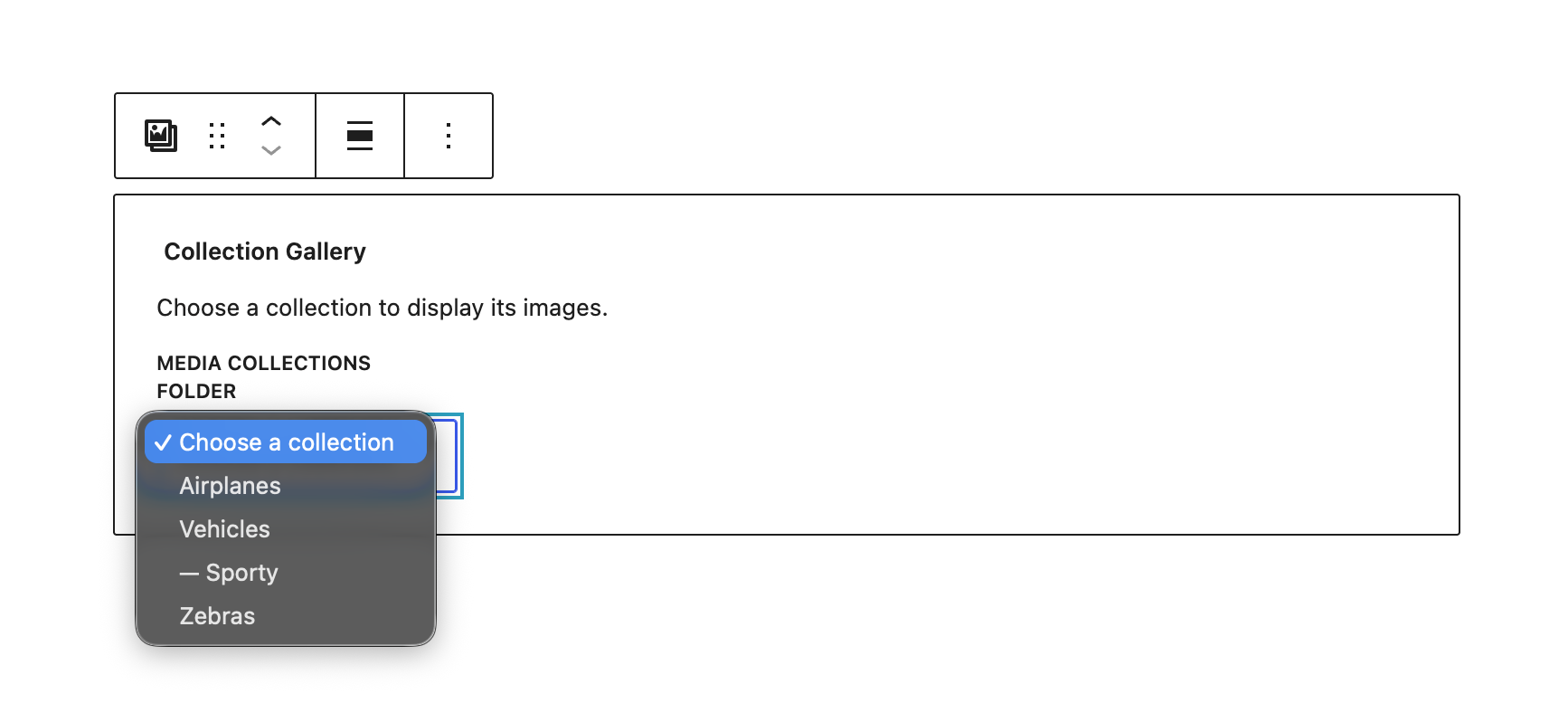
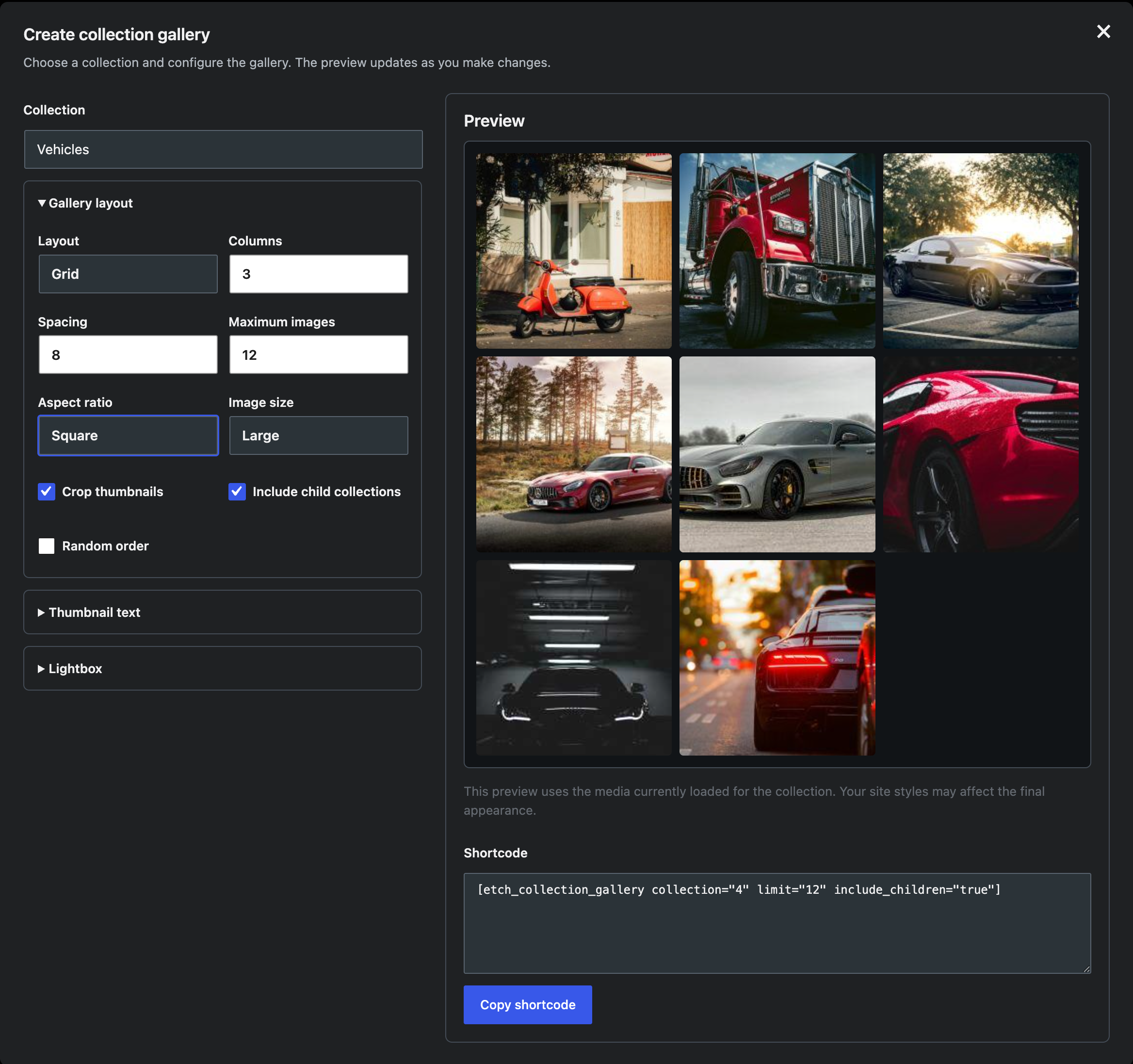
The Collection Gallery block displays a live gallery fed by an Etch collection. Adding or removing an image from the selected collection updates the rendered gallery without editing the page. Block controls include standard grid, tiled mosaic, circular grid, square tiles, and tiled columns; one to eight columns; image resolution; cropping and aspect ratio; spacing; random order; child collections; and an image limit.
Image behavior can use the custom gallery lightbox, the native WordPress lightbox, or no interaction. The custom lightbox includes optional titles and captions, a horizontal or vertical thumbnail strip, separate lightbox image resolution, fullscreen and zoom controls, customizable colors and font sizes, and information above or below the image. It supports Escape, arrow, Home, End, Tab, Shift+Tab, plus/minus, and zero keyboard controls, traps focus while open, announces slide changes, and restores focus to the originating thumbnail when closed. Images are never linked directly to a media file or attachment page.
Thumbnail titles and captions are separate options and are disabled by default. When enabled, their colors, background color and opacity, font sizes, alignment, and top, center, or bottom position are customizable.
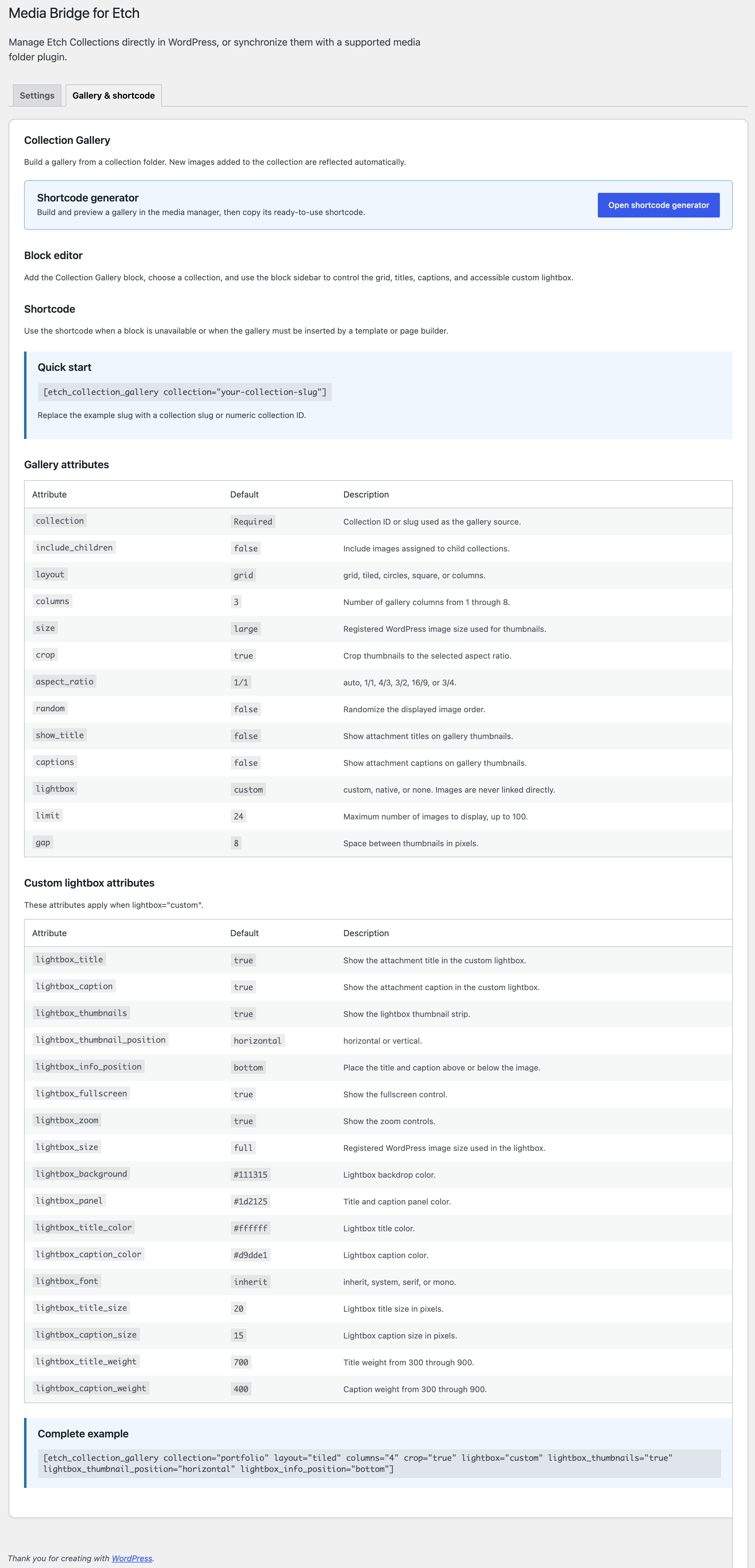
The same gallery renderer is available through the [etch_collection_gallery] shortcode. The collection value can be a collection ID or slug:
[etch_collection_gallery collection="airplanes" layout="tiled" columns="4" size="large" lightbox="custom" lightbox_thumbnails="true" lightbox_thumbnail_position="horizontal" limit="24"]
The lightbox value accepts custom, native, or none. Custom-lightbox options include lightbox_title, lightbox_caption, lightbox_thumbnails, lightbox_fullscreen, lightbox_zoom, lightbox_size, lightbox_thumbnail_position, lightbox_info_position, lightbox_background, lightbox_panel, lightbox_title_color, lightbox_caption_color, lightbox_font, lightbox_title_size, lightbox_caption_size, lightbox_title_weight, and lightbox_caption_weight. Font values are inherit, system, serif, or mono. Thumbnail text uses show_title, captions, title_color, caption_color, text_background, background_opacity, title_size, caption_size, text_align, and text_position.
Available shortcode attributes are collection, include_children, layout, columns, size, crop, aspect_ratio, random, show_title, captions, lightbox, title_color, caption_color, title_size, caption_size, text_align, limit, and gap. Layout values are grid, tiled, circles, square, or columns. Images can use the native WordPress lightbox or remain non-clickable; direct image and attachment links are not supported.
Access and permissions
Media Bridge uses WordPress capabilities rather than maintaining a separate role system. Access to Media > Etch Collections and its media-selection tab requires the upload_files capability. Creating, renaming, moving, or deleting collections requires the Etch taxonomy’s manage_terms capability, while assigning media requires its assign_terms capability. Editing attachment details requires edit access to that attachment, and permanent deletion requires delete access to that attachment. WordPress administrators and editors normally have all required capabilities; authors retain the limits configured by WordPress and any role-management plugin.
The WordPress Command Palette follows the same rules. Users with upload_files can open the manager command while native mode is active. Only users with manage_options can see and open the Media Bridge settings command.
Screenshots
Blocks
This plugin provides 1 block.
- Collection Gallery Display a live gallery of images from an Etch collection.
Installation
- Install and activate Etch.
- Install and activate Media Bridge for Etch.
- Open Media > Etch Collections to organize media without another folder plugin.
- Optional: install Wicked Folders or HappyFiles, then select it under Media > Media Bridge.
- If using a bridge provider, run reconciliation once before relying on automatic synchronization.
Reviews
There are no reviews for this plugin.
Contributors & Developers
“Media Bridge for Etch” is open source software. The following people have contributed to this plugin.
Contributors
Translate “Media Bridge for Etch” into your language.
Interested in development?
Browse the code, check out the SVN repository, or subscribe to the development log by RSS.
Changelog
1.5.1
- Moves main-library search, filters, thumbnail sizing, and collection assignment actions into a docked top drawer that pushes the media view, while keeping list/grid controls always visible.
- Adds a persistent pin control that keeps the main-library drawer open between visits and closes it when unpinned.
- Fixes collection assignment controls so they wrap cleanly on tablet and mobile screens.
- Uses closed and open folder icons for leaf collections while leaving parent collection groups unadorned.
- Includes child collections when a parent collection is selected.
- Adds a paperclip indicator to cards for media attached to content.
- Adds the upload date to the attachment details modal.
- Refines media status icon sizing and the accessible drawer presentation.
1.5.0
- Adds a server-rendered Collection Gallery preview for Etch passthrough blocks.
- Adds focused collection, layout, image, caption, and lightbox controls inside the Etch builder.
- Saves Etch-side gallery changes back to the original Gutenberg block representation.
- Keeps the Etch Collection Gallery passthrough wrapper in normal document flow so parent containers grow to the gallery’s rendered height.
- Improves Etch gallery settings contrast, focus visibility, control boundaries, and touch target sizing.
- Traps keyboard focus inside the settings dialog, makes the builder background inert, and restores focus when the dialog closes.
- Exposes the dialog description and saving state to assistive technology.
1.4.1
- Makes the gallery block and shortcode an option (on by default).
- Fixed overlap issues in the filter bar on smaller screens.
- Matches the Media Collections modal sidebar spacing and controls to the main media manager.
- Applies the configured appearance colors consistently inside the Media Collections modal.
- Refreshes the modal collection view as soon as an upload completes.
- Adds modal uploads to the collection that was selected when the upload began.
1.4.0
- Adds a file-extension filter populated from extensions present in the media library.
- Expands Clear filters to reset media type, file extension, upload date, and search.
- Adds the main media filters and Clear filters to the Media Collections tab in the Add Image modal.
- Adds a dynamic Collection Gallery block and matching shortcode fed automatically by a collection.
- Adds an enabled-by-default setting that can unregister and hide all Collection Gallery functionality.
- Adds aligned collection counts, collapsible parents, and parent chevrons to the collection tree.
- Adds a visual shortcode generator with a live gallery preview in the media manager.
- Adds grid, columns, circles, square, and true masonry mosaic gallery layouts with optional aspect-ratio cropping.
- Adds thumbnail title and caption controls, including position, typography, color, and background styling.
- Adds a professional custom lightbox with full-image containment, keyboard navigation, zoom, fullscreen mode, styled title and caption content, and horizontal or vertical thumbnail strips.
- Preserves custom block CSS classes and responsive lazy loading in gallery output.
- Keeps child collections directly beneath their parent in gallery collection selectors.
- Prevents the hidden native Media Library view from appearing when the collection manager is the default Media screen.
- Makes the gallery generator refresh its selected collection regardless of how it was opened.
- Opens the gallery generator with the collection currently selected in the Media Manager.
1.3.0
- Adds an explicit second confirmation before deleting media detected in site content.
- Prompts administrators to delete child collections or promote them when deleting a parent collection.
- Fixes collection renaming so updated names are saved and synchronized.
- Adds grid and list views plus media type and date filters.
- Adds a one-click control for clearing active media type and date filters.
- Makes the collections tab the default media-selector view and hides its legacy Media Library tab when the optional default Media screen setting is enabled.
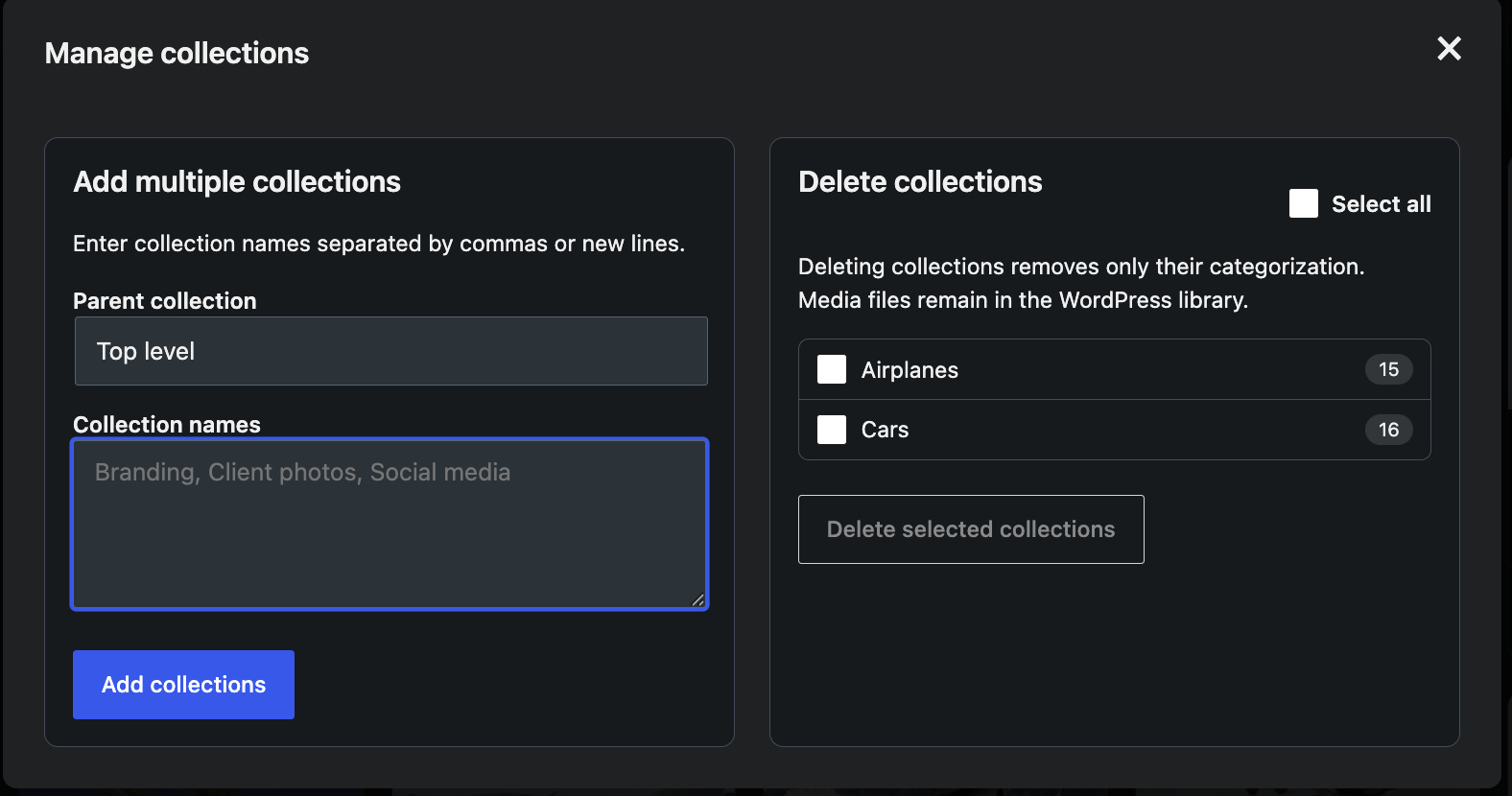
- Adds bulk collection creation from comma-delimited or line-delimited names and bulk taxonomy-only deletion.
- Adds accessible light- and dark-mode color customization.
- Displays the plugin version in settings and the media-manager information popover.
- Adds a first-phase used/not-found status to attachment details.
1.2.0
- Added an administrator-defined white-label name for the native media manager while retaining Etch Collections as the default.
- Applied the custom manager name consistently to the Media menu, page title, media-selection tab, information popup, settings guidance, pagination control, and manager callout.
- Added capability-aware WordPress Command Palette entries for the manager and Media Bridge settings, with both discoverable by searching for Etch.
- Hid the native manager menu and media-selection tab while Wicked Folders or HappyFiles is the active organization mode.
- Added an off-by-default option to make the custom manager the primary Media destination and hide the legacy Library submenu link without disabling WordPress’s native media library.
1.1.1
- Improved bulk selection with reliable Shift-click checkbox ranges, clearer collection guidance, collection-aware actions, and a dedicated Clear selection action.
1.1
- Enforced the Etch dependency with activation and runtime checks, preventing the bridge from starting unless Etch is installed and active.
- Added a native Media > Etch Collections workspace that does not require a third-party folder plugin.
- Added two-level collection management, media uploads, search, drag-and-drop assignment, multi-selection, and bulk actions.
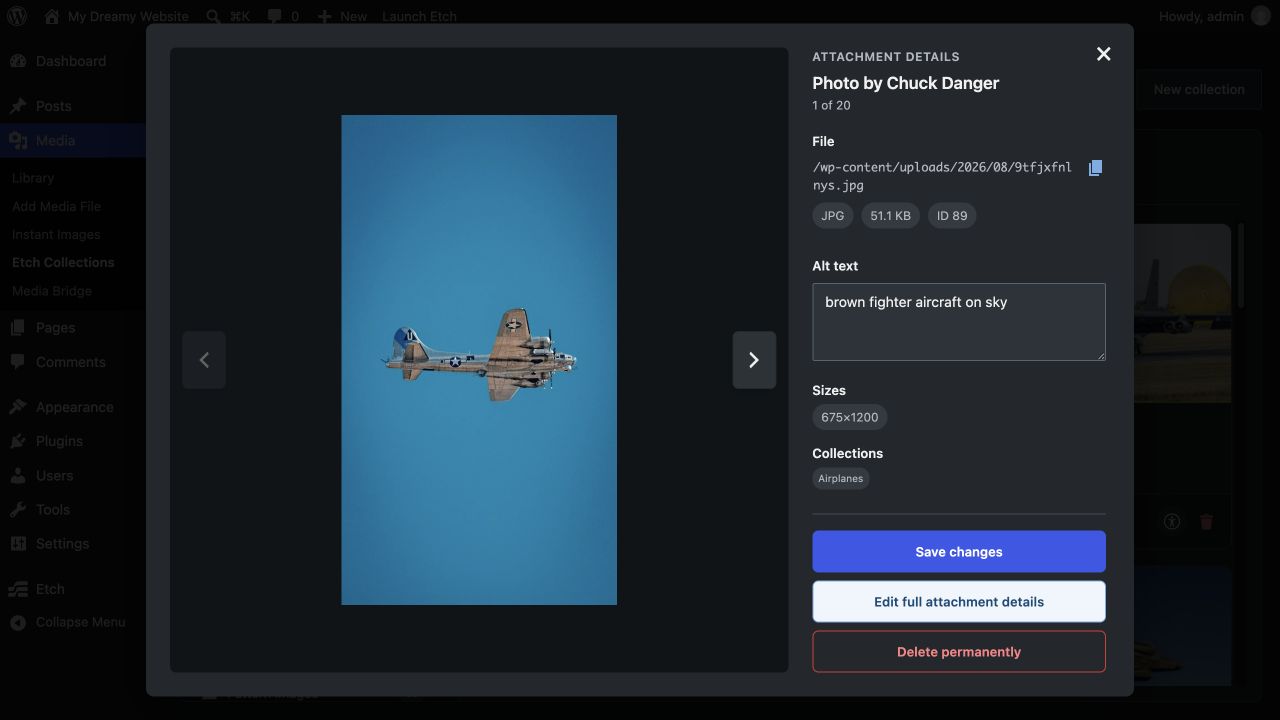
- Added an in-place attachment details modal with file metadata, editable alt text, dimensions, and collection membership so viewing media does not lose the current collection context.
- Kept attachment-specific confirmations and errors inside the attachment modal instead of displaying them in the main library window.
- Added previous and next attachment navigation with keyboard controls, position tracking, automatic page-boundary loading, and alt-text saving before navigation.
- Made numbered media-library pagination optional and disabled it by default, using automatic scroll loading instead.
- Added permanent media deletion from library cards, bulk selection tools, and the attachment modal.
- Added Ctrl/Command-click toggling and Shift-click range selection for bulk category actions.
- Refined the media cards with uniform edge-to-edge thumbnails, compact selection and deletion footers, alt-text status indicators, and accessible usage guidance.
- Added a persistent 180–400 pixel thumbnail-size control, centered in the library header and defaulting to 240 pixels.
- Consolidated library instructions and the alt-text indicator explanation into an accessible information popup beside the Etch Collections title.
- Kept thumbnail placement centered and consistent across the library and WordPress media dialogs.
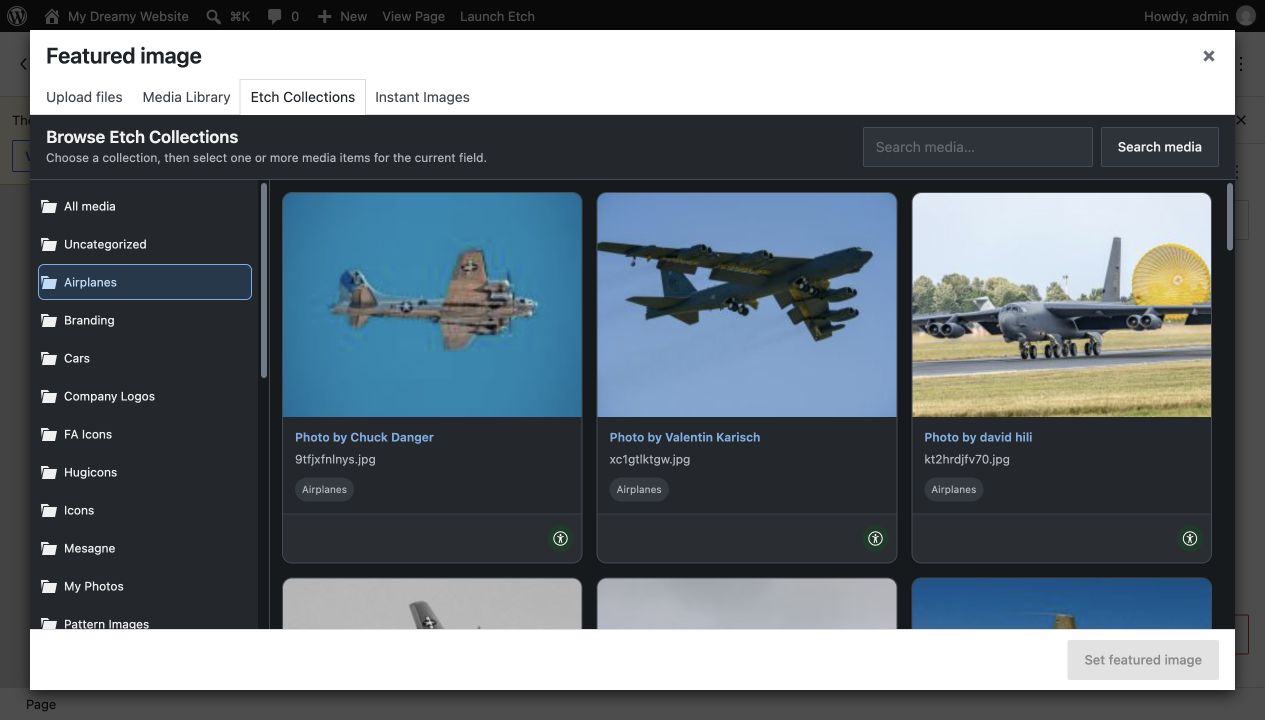
- Matched Etch Collections cards inside WordPress media-selection dialogs, including filenames, collection badges, and alt-text status.
- Replaced the media-dialog Load more button with automatic scroll loading and tightened the collection sidebar.
- Expanded the native library to the available admin width and increased its minimum card width to 240 pixels.
- Kept the WordPress admin chrome fixed while giving the image results and an overflowing collection tree independent scroll areas.
- Prevented unusually long WordPress admin menus from increasing the Etch Collections page height by containing the menu in an independent desktop scroll area.
- Added thin, theme-aware scrollbars throughout the native library and media-selection interface.
- Contained long collection lists within the 240-pixel media-dialog sidebar so they no longer enlarge WordPress’s outer modal.
- Added Auto, Light, and Dark appearance modes for the Etch Collections library and its WordPress media-selection tab.
- Audited light and dark interface colors for WCAG AA text contrast, visible focus, selection, status, and destructive-action states.
- Removed image-layout indicators from cards to keep the selection footer unambiguous.
- Documented the WordPress capability checks used for media, collection, assignment, editing, and deletion access.
- Replaced the redundant upload-or-select workflow with a focused uploader that opens directly to file upload while preserving automatic assignment to the active collection.
- Added an Etch Collections tab to WordPress media-selection dialogs with collection filtering, search, automatic scroll loading, and native single or multiple attachment selection.
- Hid synchronization history in Etch-only mode, where no external folder bridge is active.
- Added automatic alphabetical position normalization for collections created or edited in the native workspace.
- Kept Wicked Folders and HappyFiles available as optional synchronization modes.
- Documented the complete migration and rollback procedure for removing an external folder provider safely.
1.0.2
- Fixed Clear History immediately restoring entries from the legacy log option.
- Fixed new folder synchronization when a fixed conflict authority is selected, while continuing to enforce that authority for mapped folders.
- Preserved alphabetical placement for new folders that have no explicit source order, while continuing to synchronize custom ordering when available.
1.0.1
- Fixed synchronized folder deletions by preserving mapped counterpart details until WordPress confirms the source folder was deleted.
- Fixed stale counterpart mappings when a folder is deleted while deletion synchronization is disabled.
- Clarified that plugin settings are managed under Media > Media Bridge, not the WordPress Settings menu.
1.0.0
- First stable release.
0.1.1
- Hardened provider input validation and mapped-term verification.
- Replaced the reconciliation tax query with taxonomy-native object lookups.
- Improved admin table semantics, status announcements and translated notices.
- Added missing translator context.
0.1.0
- Initial development release.
- Added Etch, Wicked Folders and HappyFiles providers.
- Added bidirectional folders and attachment assignments.
- Added reconciliation, conflict policy, deletion safety and sync history.