

Description
TwinCraft AutoGuard takes the worry out of keeping a WordPress site current. Instead of just flipping on WordPress’s built-in auto-updates and hoping for the best, it follows a simple, safe sequence every time:
Backup Update Verify Notify
- Backup — before anything is changed, the plugin or theme being updated is backed up automatically.
- Update — the update is applied.
- Verify — the plugin checks whether the update actually completed successfully.
- Notify — if anything goes wrong, you get an email immediately with exactly what failed and why. Successful updates are simply logged for your records.
Key features
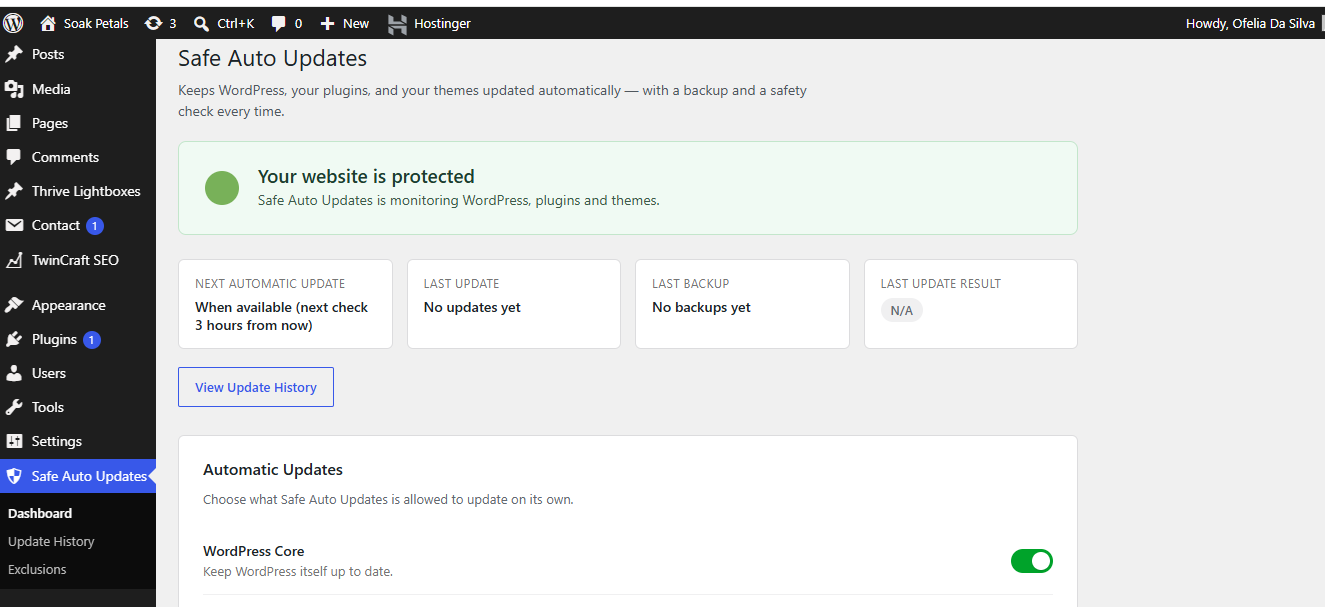
- One clear dashboard that answers “Is my website protected?” at a glance
- Separate on/off switches for WordPress core, plugins, and themes
- Automatic backup before every update
- Instant email alerts on failure, with full details
- A simple, readable Update History log
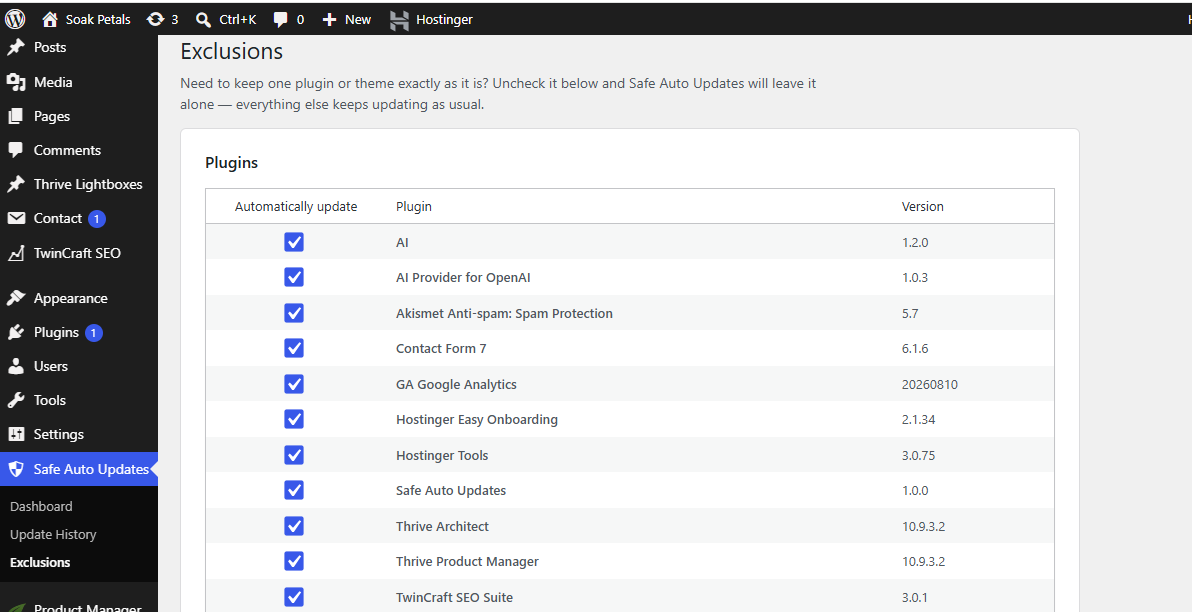
- Exclude individual plugins or themes from automatic updates in one click
- No ads, no upsells, no confusing settings — built to be understood by anyone
Who is this for?
Site owners who want the convenience of automatic updates without the risk of an update breaking their site unnoticed. If something fails, you’ll know immediately — and you’ll have a backup to fall back on.
Screenshots
Installation
- Upload the
twincraft-autoguardfolder to/wp-content/plugins/, or install directly through the WordPress Plugins screen. - Activate the plugin through the “Plugins” menu in WordPress.
- A popup will appear prompting you to run a quick Diagnostics check — this confirms nothing (like a hosting setting or another plugin) is silently blocking automatic updates. It takes a couple of clicks.
- Go to TwinCraft AutoGuard in your admin menu to review your settings — automatic updates, backups, and email notifications are all enabled by default.
FAQ
-
Where are backups stored?
-
Backups are stored in
wp-content/tcag-backups/, a folder that is protected from direct web access. Backups older than 30 days are automatically removed to save disk space. -
Will this slow down my site?
-
No. TwinCraft AutoGuard only runs during WordPress’s normal background update process — it adds no load to regular page views.
-
Can I stop a single plugin or theme from updating automatically without turning everything off?
-
Yes. Go to TwinCraft AutoGuard Exclusions and uncheck “Automatically update” next to that specific plugin or theme. Everything else keeps updating as normal.
-
What happens if an update fails?
-
You’ll see it flagged on your dashboard immediately, with the item name, current and target versions, backup status, and the error message. You’ll also receive an email with the same details and a link back to your dashboard.
Reviews
There are no reviews for this plugin.
Contributors & Developers
“TwinCraft AutoGuard” is open source software. The following people have contributed to this plugin.
Contributors
Translate “TwinCraft AutoGuard” into your language.
Interested in development?
Browse the code, check out the SVN repository, or subscribe to the development log by RSS.
Changelog
1.4.1
- Fixed: WordPress core updates were still occasionally logged as “Failed” (with a false alarm email) even when the update genuinely succeeded. WordPress’s own automatic-update skin can accumulate non-fatal feedback messages during core’s multi-step update process, which were being misread as real errors. A proven version increase on disk is now the authoritative signal, overriding a noisy report either way — not just when a failure was reported. Also added a more reliable, independent way of capturing core’s version right before an automatic update cycle starts, since WordPress’s internal hook structure for core has shifted across versions (e.g. the 6.3+ rollback/temp_backup mechanism).
1.4.0
- Added: a one-time welcome popup right after activation, prompting a Diagnostics check in a couple of clicks. This surfaces the most common cause of “nothing is updating” (something outside the plugin silently blocking WordPress’s background updater) before it causes confusion, rather than leaving it to be discovered later.
1.3.4
- Fixed: two situations where a genuinely successful update was incorrectly logged as “Failed” and triggered a false failure email. First, background auto-updates (especially WordPress core) can retry internally — a failure signal from an earlier attempt could get attached even though a later retry in the same cycle actually succeeded; the plugin now trusts a proven version increase on disk over a noisy failure report. Second, updating something that’s already on the latest version (a normal no-op) was being flagged as a failure just because no version change was detected; it’s no longer treated as an error unless WordPress itself actually reported one.
1.3.3
- Updated Plugin URI to the live landing page at twincraftstudio.com/plugins/twincraft-autoguard/, now that it’s published under the new name.
1.3.2
- Fixed: WordPress core and theme updates were sometimes logged as “Failed” even though they succeeded. Verification was comparing against $wp_version and wp_get_theme(), both of which can hold outdated values in memory for the rest of the same request. Verification now reads the actual version straight from the file on disk (wp-includes/version.php for core, style.css for themes) instead.
1.3.1
- Fixed: the Diagnostics page no longer shows the “something is blocking updates” warning just because there’s nothing to update right now. “No updates currently available” and “Plugins toggle is off” are informational, not blockers, and no longer trigger the warning banner or the daily health-check email.
1.3.0
- Added: a one-click “Try to Fix This Automatically” button on the Diagnostics page when something outside the plugin (a host or another plugin) has disabled WordPress’s background updater. No file editing or hosting support ticket required for most cases.
1.2.0
- Added: a daily background health check that emails the site admin if something outside the plugin (hosting settings, a security plugin, wp-config.php) is blocking WordPress’s automatic updates entirely — not just when an individual update fails.
- Added: a follow-up “resolved” email once a previously-reported blocker clears.
- The alert only re-sends once a week for the same unresolved issue, so it won’t spam the inbox.
1.1.0
- Fixed: automatic updates for plugins and themes now actually apply when their toggle is on, instead of only respecting WordPress’s own per-item default.
- Fixed: manual updates (clicking “Update Now”) are now logged and backed up too, not just background automatic updates.
- Added: independent verification — the plugin now checks the version actually installed on disk after an update, instead of only trusting the reported result.
- Added: each history entry now records whether it was triggered automatically or manually, with filter tabs on the Update History page.
- Added: a Diagnostics page that checks the real WordPress-level conditions (WP-Cron status, file modification permissions, scheduled checks, available updates) that control whether background auto-updates can run at all.
1.0.0
- Initial release.